Guide
Set Up Automatic Twitch Shoutouts with MorrBot Walk-Ons
Create an automatic shoutout list with walk-ons, set the cooldown, and optionally let moderators add guests from chat.
Give regular guests an automatic shoutout
A walk-on can run your shoutout command when someone on your list chats in your channel. Set it up once, then let moderators add guests from chat when needed. You do not need a sound or an OBS overlay for a text shoutout.
You will create a guest list, connect it to your shoutout command, and choose how often each guest can trigger it. The names autoshout, shoutout, and addautoshout below are examples you can use or replace with your own.
1. Check your shoutout command
While live or in your normal controlled stream test, send your shoutout command, such as !shoutout GuestUsername, and confirm the guest's name and channel link appear. Replace GuestUsername with the Twitch login of someone you want to feature.
If you need a command, open Commands, create shoutout, and set its response to Go check out $targetusername at $targetuserurl!. Save it and test again. See Create your first command for the basic workflow. You can add $targettwitchshout to request an official Twitch shoutout too; Twitch's permissions and cooldowns still apply.
2. Create the walk-on set
- Open Walk-Ons and select Create New Walk-On Set.
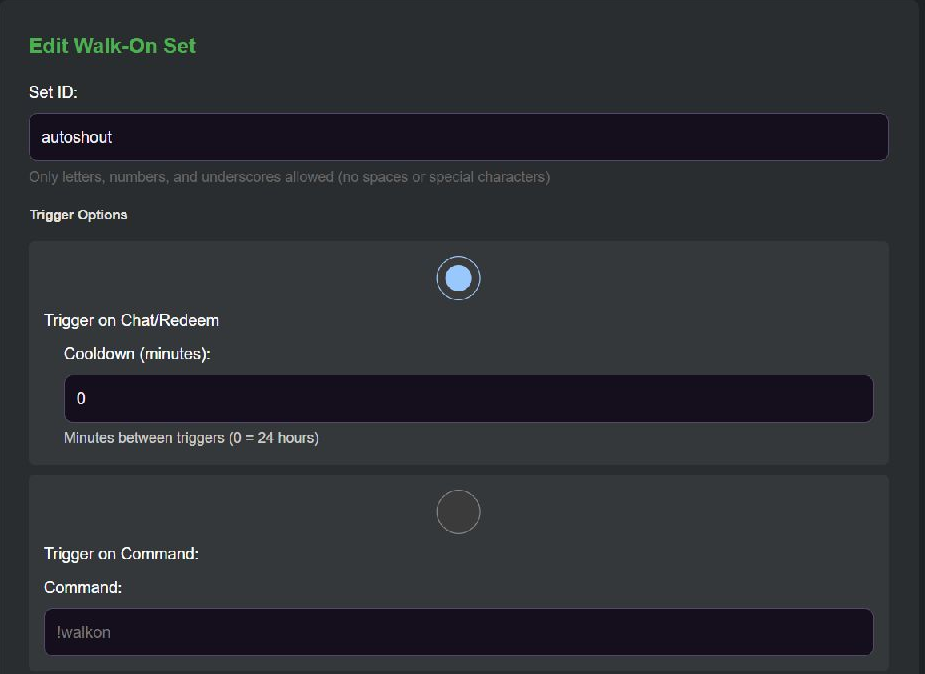
- Enter
autoshoutin Set ID. If that ID already exists, edit that set instead of creating another. - Select Trigger on Chat/Redeem.
- Start with Cooldown (minutes) set to
0, which means 24 hours per person during the stream. MorrBot also resets walk-on cooldowns when its end-of-stream cleanup runs. Enter a positive value if you want a custom interval in minutes. - Under Action → Message, enter
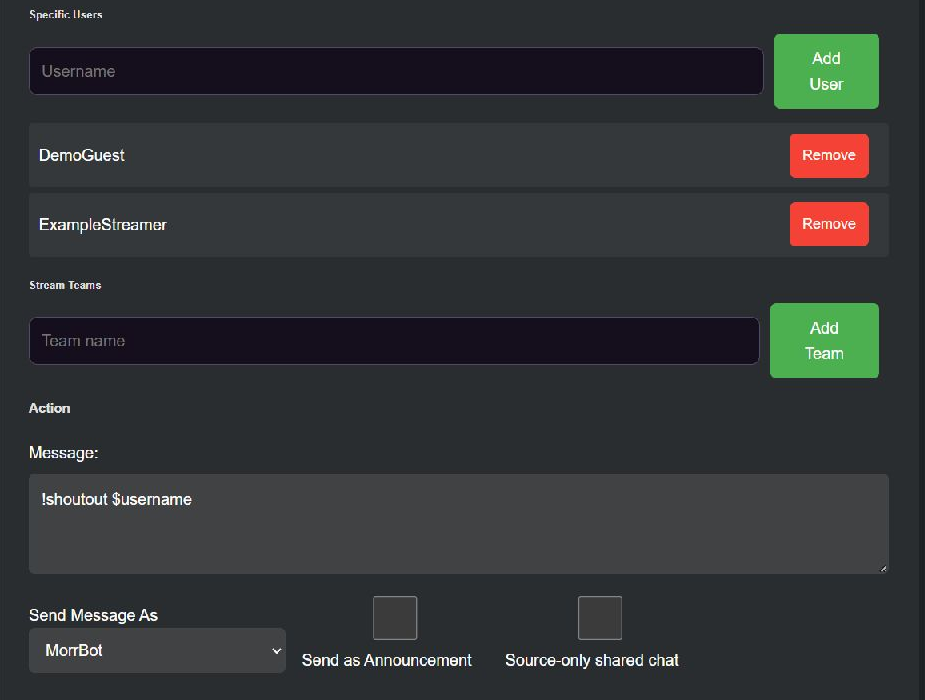
!shoutout $username, replacingshoutoutif your tested command has a different name. Keep$usernameas written: MorrBot replaces it with the person who triggered the walk-on. - Keep Send Message As set to MorrBot for a simple setup and leave Send as Announcement off.
- Leave Enable for VIPs and Enable for Moderators unchecked if you want to choose each guest individually.
- Select Save Walk-On Set.
3. Add the people who should get shoutouts
- Open the saved
autoshoutset for editing. - Under Specific Users, enter a Twitch username and select Add User.
- Repeat for the guests you want to feature. MorrBot resolves each username to its Twitch user ID.
- Confirm the names appear in the list. Save any other changes to the set.
You must save a new set before adding specific users or stream teams. The VIP and moderator checkboxes choose who receives an automatic shoutout; they do not give moderators permission to manage the list.
4. Optional: let moderators add guests from chat
A moderator-only command lets your team add guests without opening the dashboard.
- Open Commands and create a command named
addautoshout(without the leading!). - Set the response to
$addtargettowalkon:autoshout. If you chose a different Set ID, replace the finalautoshoutwith that exact ID. - Set the permission level to Mod + and save the command.
- Have a moderator send
!addautoshout GuestUsernamein your channel's chat. - Wait for
✅ User added to list, then reopen the walk-on set and confirm the guest appears under Specific Users.
Adding a person updates the list; it does not immediately shout them out. Their next eligible chat activity triggers the walk-on. The command needs a target username, and the autoshout set must already exist. If MorrBot reports an error, check the Set ID and Twitch login before trying again.
5. Verify the automatic shoutout
Ask an added guest whose cooldown has expired to send a chat message while you are live. Confirm the shoutout targets that guest, then ask them to chat again and confirm it does not repeat during the cooldown. Test with a person who is not on the list too: they should not trigger this set unless you enabled their role or stream team.
If nothing happens, check the saved guest list, the walk-on cooldown, and the shoutout command's own cooldown. Run the shoutout command manually to isolate a command problem from a walk-on problem. Check that MorrBot and your selected sending account are connected. See Bot not responding for the remaining checks.
Limitations and when to choose another tool
MorrBot normally checks for the end of a stream after 30 minutes offline, or about one minute after a raid-out. Its end-of-stream cleanup resets walk-on cooldowns. If you go live again before that check and Twitch reports you online, cleanup does not run and the existing cooldown continues. Brief disconnects and quick restarts can therefore preserve a cooldown; separate streams with completed cleanup start fresh, even on the same day.
VIPs, moderators, and stream teams expand who can trigger the set, so enable them only if everyone in those groups should receive a shoutout. A walk-on cannot bypass Twitch's official shoutout limits. See Twitch's Send a Shoutout reference for current requirements.
Choose another tool if you need a bespoke animated introduction or local hardware effects that your existing shoutout command cannot produce. For a guest's name and channel link in chat, this walk-on and command setup is enough.