Guide
How to Send Twitch Clips to Discord Automatically
Connect a Discord destination, choose a safe clip workflow, test permissions, and prevent noisy or broken posts.
Decide which clips deserve a community notification
MorrBot Pro and Elite can post clips created through MorrBot to a selected Discord channel. Connect Discord, save a clip destination, then create a test clip through MorrBot and confirm its post arrives. This workflow does not automatically collect every clip viewers create on Twitch.
Automatically posting every clip can turn a useful Discord channel into a feed people mute. Start with a destination built for clips, a clear posting rule, and permissions limited to the server and channel MorrBot needs. Then test one clip end to end.
Connect Discord from the MorrBot dashboard, select the intended server and text channel, and save the clip-posting destination. The Twitch and Discord identities remain separate durable records; campaign attribution does not control who owns a billing referral or Discord link.
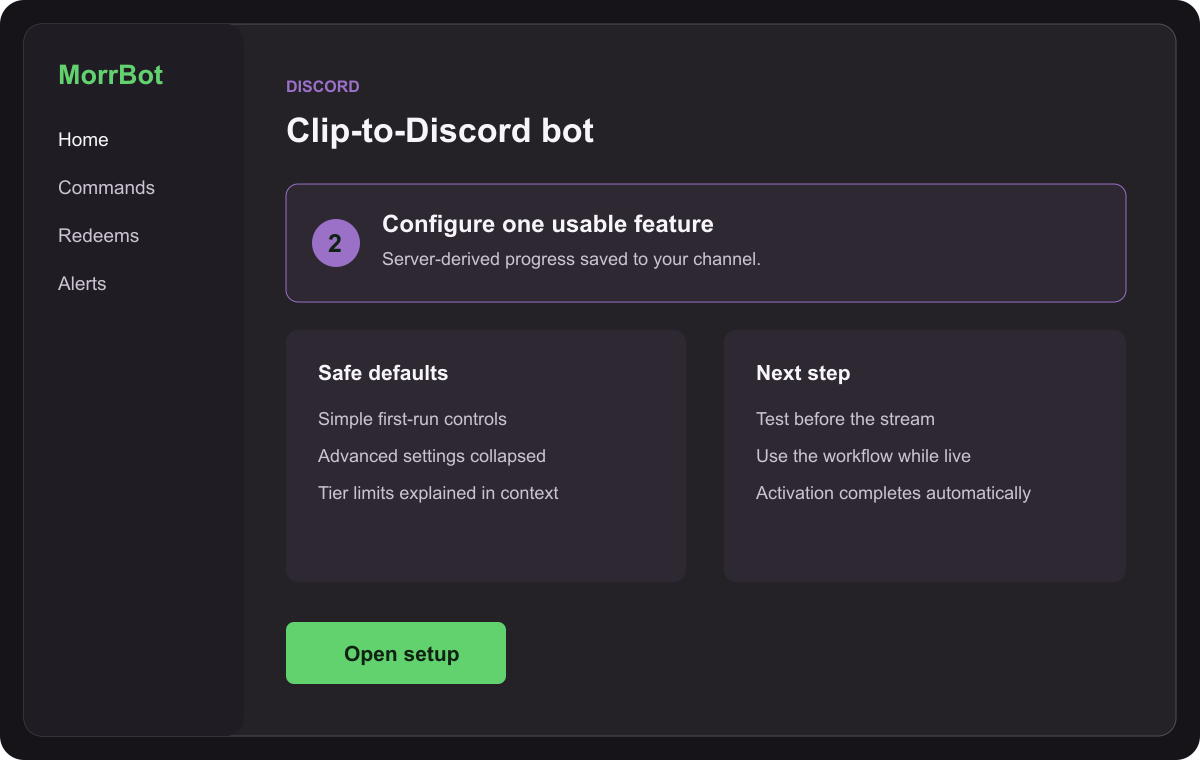
A clean setup sequence
- Create or choose a Discord text channel for stream clips.
- Give the MorrBot integration permission to view and post in that channel.
- Connect Discord in MorrBot and select the channel.
- Enable Clip-to-Discord for the intended Twitch channel.
- Create a test clip and verify the link, text, and destination.
Use a channel name and topic that tell members what will arrive. If multiple people can create clips, decide whether all creators are allowed or whether a moderator should review them. Keep unrelated live notifications in a separate channel if their frequency and audience are different.
Troubleshooting the full path
If nothing posts, confirm the clip exists and is available from Twitch, then check the saved Discord channel and bot permissions. If the post reaches the wrong place, fix the destination rather than adding a second notification rule. If duplicates appear, check for another bot or webhook posting the same clip before changing MorrBot.
MorrBot should record the Discord action as meaningful use only when it produces the outward result. Background connection checks do not count as channel activity.
Limitations and when to choose another tool
MorrBot’s Clip-to-Discord workflow is for connecting Twitch moments to a Discord community as part of the wider bot stack. Choose another tool if you need video transcoding, automatic highlight editing, cross-posting to many social networks, approval queues with multiple editors, or custom Discord embed code. Choose manual posting when clips are rare and every post needs editorial context from the streamer.
Sources and setup references
Follow MorrBot's Discord setup guide. Twitch's Clips API guide covers clip creation and retrieval, while Discord's permissions reference explains channel access and message permissions.